Docker Containers Explained for Beginners: A Practical Introduction to Modern Deployment
In modern software development, teams need a consistent way to move code from a laptop to testing and then to production. Docker containers explained for beginners with examples is a practical way to see how this works. A container packages an application and its dependencies into one unit that runs the same on any machine that supports Docker.
Think of a container as a lightweight, isolated box for your app. It is not a full virtual machine, so it starts faster and uses fewer resources. Because the box contains the runtime, libraries, and configuration your app needs, you avoid the common problem of it works on my machine.
What a container actually is
A container runs an isolated process on your operating system. It shares the OS kernel, which is why it is lighter than a virtual machine. Each container has its own filesystem, environment variables, and networking, so one app cannot accidentally interfere with another.
Docker makes this model simple to use. You describe what goes inside the container, build an image from that description, and then run the image as a container. The image is the blueprint, and the container is the running instance.
Images, containers, and the Dockerfile
An image is a read-only template. It includes your application code, a runtime like Node or Python, required libraries, and a default command to start the process. Images are built in layers, which helps with caching and speed.
A Dockerfile is a plain text file with instructions for building an image. It tells Docker which base image to start from, which files to copy, which packages to install, and what command to run when the container starts.
A container is created from an image and adds a writable layer on top. If you change files while the container is running, those changes live in this layer. For production, it is better to build a new image than to rely on changes inside a running container.
A simple example you can try
Here is a minimal example for a small Node.js web service.
- Create a folder for your project.
- Add a file named app.js with a basic HTTP server that responds with Hello from Docker.
- Add a package.json with a start script that runs node app.js.
- Create a Dockerfile that uses a Node base image, copies your code, installs dependencies, and runs npm start.
- Build the image with docker build -t my-node-app .
- Run the container with docker run -p 3000:3000 my-node-app
Visit http://localhost:3000 and you should see the response. The same image can now be sent to a server or shared with a teammate, and it will behave the same way.
Why containers help deployment
Containers solve several deployment problems at once. They create consistency, isolation, and repeatability.
- Consistency: The container includes the runtime and dependencies, so the environment is identical everywhere.
- Isolation: Each service runs in its own container, reducing conflicts between versions and configurations.
- Repeatability: The Dockerfile captures the build steps, making it easy to recreate the same image later.
These properties make it simpler to move from development to staging and production. They also make scaling easier because you can run multiple containers from the same image.
Working with data and configuration
Containers are ephemeral by default. When a container is removed, its writable layer is gone. To keep data, use volumes. A volume is a storage area managed by Docker that persists beyond the life of a container. Databases and file uploads are common use cases.
For configuration, prefer environment variables. You can pass values like database URLs or API keys at runtime. This keeps images general and avoids hardcoding sensitive information.
Example commands to remember:
- docker run -v my-data:/app/data my-image to attach a named volume.
- docker run -e DATABASE_URL=postgres://… my-image to set an environment variable.
- docker run -p 8080:80 my-image to map host port 8080 to container port 80.
Networking basics
Docker creates networks for containers to communicate. The default bridge network is enough for simple local setups. For multi-service applications, create a user-defined network so containers can reach each other by name.
Example: start an API container and a database container on the same user-defined network. The API can connect to the database using its container name as the host. This makes local development closer to production topology without complex configuration.
From one container to a compose file
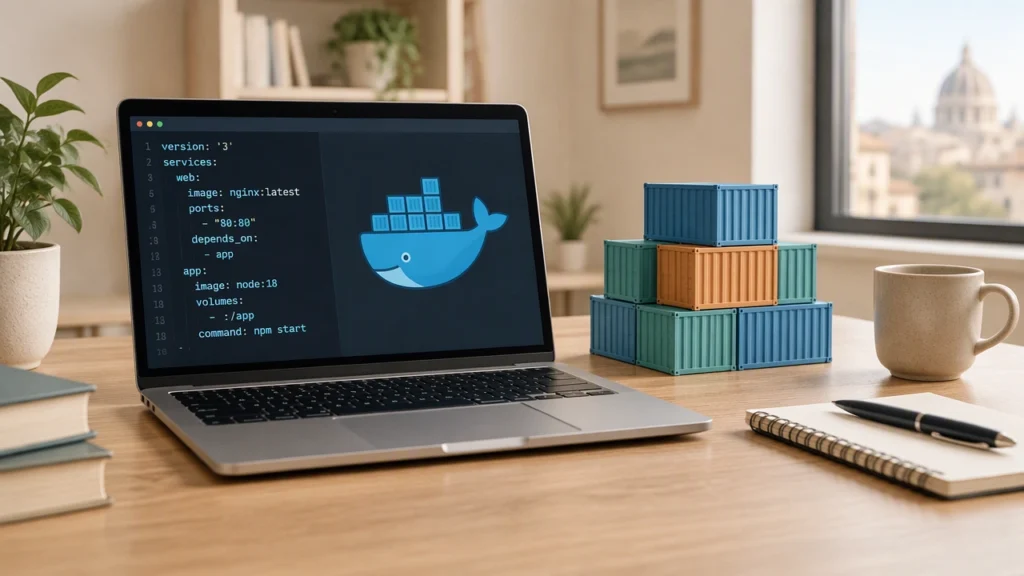
Most real projects have more than one service. Docker Compose lets you describe multiple containers, networks, and volumes in a single YAML file. With one command, you can start the entire stack.
A basic compose file might define an API service, a database service, a volume for persistence, and a network for communication. This keeps your setup documented and repeatable across machines.
Why teams rely on containers in production
Containers fit well with modern deployment practices. They start quickly, use resources efficiently, and can be versioned like code. Teams often build images in continuous integration, run automated tests against those images, and then promote the same image to production.
Containers also support scaling. If traffic increases, you can run more instances of the same container. If a container fails, orchestrators can replace it automatically. While tools like Kubernetes add complexity, many teams begin with Docker and Docker Compose, then adopt an orchestrator when needed.
Security and hygiene
Good container practices improve security. Keep images small by choosing slim base images. Do not run processes as root inside the container when possible. Scan images for known vulnerabilities and keep base images updated.
Manage secrets carefully. Avoid baking credentials into images. Use environment variables or a secrets manager, and restrict access in production.
A short checklist to start
- Write a Dockerfile that captures your build steps clearly.
- Use .dockerignore to exclude files that are not needed in the image.
- Prefer multi-stage builds to reduce image size.
- Tag images with versions, not only latest.
- Use volumes for persistent data and environment variables for configuration.
- Document common commands in a README so the team follows the same workflow.
With these basics, Docker containers explained for beginners with examples becomes a practical skill you can apply to real projects. Containers make deployment predictable, and that predictability is why they have become essential in modern software development.